

Note: Ensure that the Microsoft account you plan to use for SSO is the one you used to sign up for ArchiSnapper.
Below are the steps to log in with Single Sign-On:
An Admin User can enable the SSO option in the account by navigating to More → Account Settings:
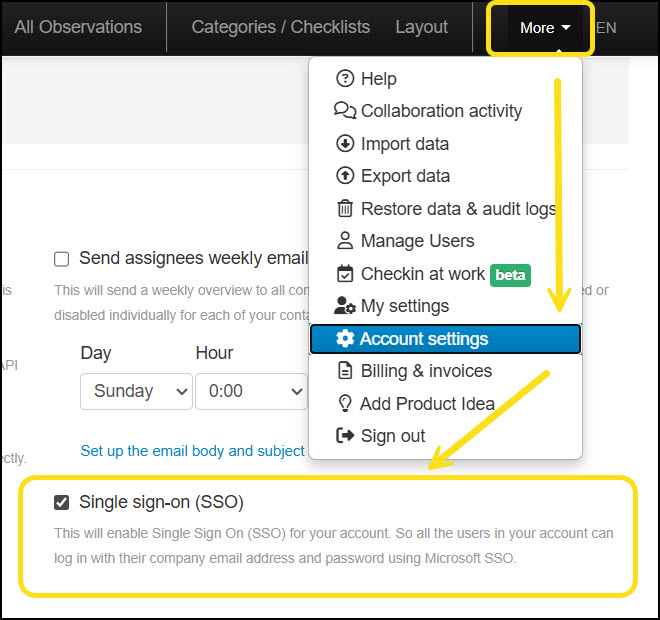
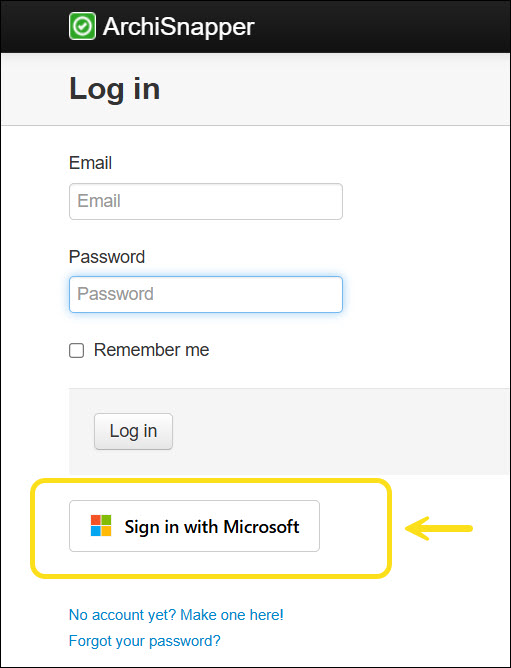
Next, navigate to the login page of your ArchiSnapper web application. You’ll now see two sign-in options:
Standard Login (email address + password)
Sign in with Microsoft (SSO)
Click Sign in with Microsoft to log in via SSO. You’ll then be redirected to enter your organization’s SSO provider details (e.g., Microsoft, company account, Google, etc.).
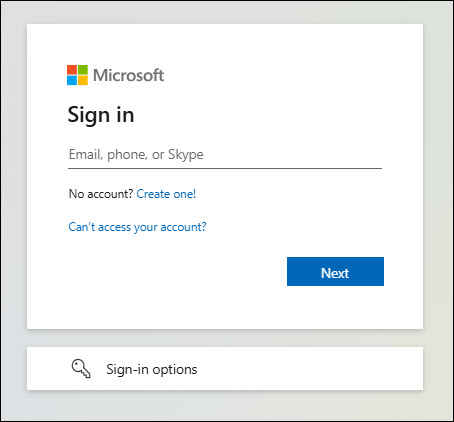
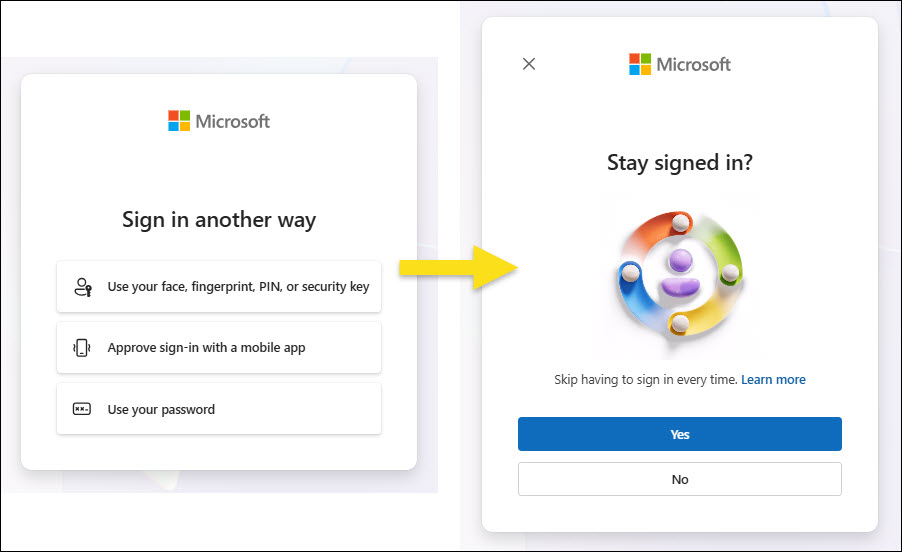
You’ll then be prompted to choose your preferred sign-in method and asked whether you’d like to stay signed in:
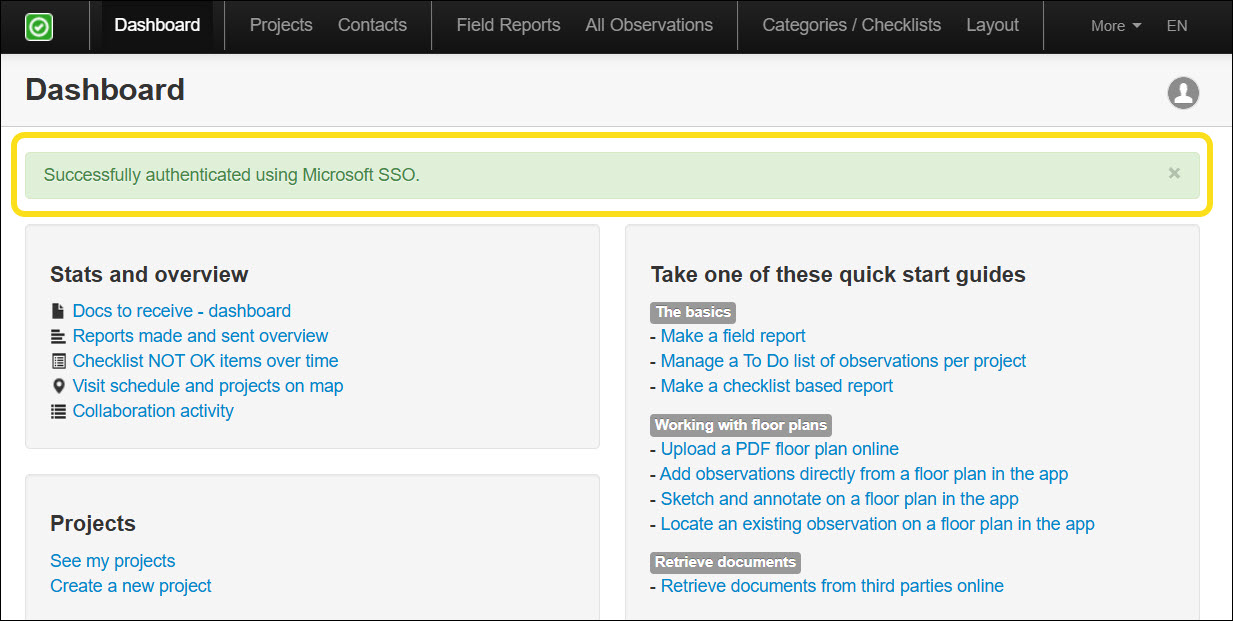
Once authentication is successful, you’ll be automatically logged into the application and see a confirmation message:
Have questions? Contact us at support@archisnapper.com.